Scan the QR code
Point your phone’s camera at the QR code on the Mac. The phone decodes your Mac’s device ID and public key (base64url, prefixed CLIPHOP1:) and connects directly to that specific Mac.
Takes ~1 second · works in bright light
Install guide
One minute, one time. Both devices derive a shared secret, authenticate each other, and show you a fingerprint you can verify.
01
The Mac is the peripheral (it advertises itself). The phone is the central (it scans for nearby Macs).
Peripheral
Click the ClipHop icon in the menu bar, choose Pair a new device. A QR code and a 6-digit code both appear.
Central
Open ClipHop, tap Pair with Mac. Choose Scan QR or Enter code.
02
Both methods end in the same cryptographic handshake. Pick whichever is easier right now.
Point your phone’s camera at the QR code on the Mac. The phone decodes your Mac’s device ID and public key (base64url, prefixed CLIPHOP1:) and connects directly to that specific Mac.
Takes ~1 second · works in bright light
The Mac shows a 6-digit code derived from its public key and the current minute. Type it on the phone; the phone scans nearby Macs and connects to the one whose code matches.
Rotates each minute · re-open Pair for a fresh code
03
In the background, both devices perform an X25519 ECDH key exchange signed by their long-term Ed25519 identity keys. The result is a shared session key (AES-256-GCM) that lives in memory only and is re-derived on every reconnect. You don’t have to do anything for this step.
04
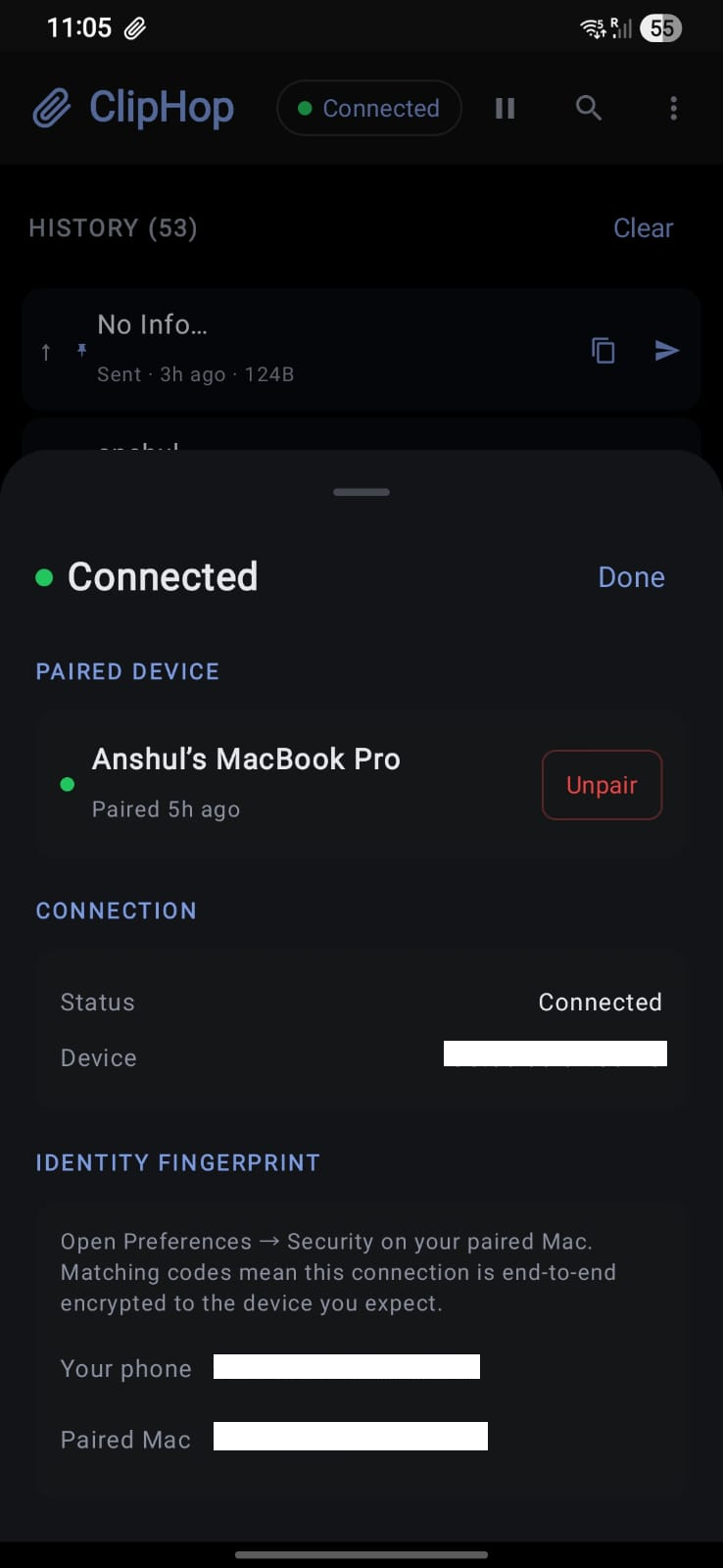
Confirm the same short fingerprint shows on both devices. This is the only moment where a MITM could be detected, so don’t skip it.
Your Mac shows
4A-9F-E1
derived from phone’s pubkey
Your phone shows
4A-9F-E1
derived from Mac’s pubkey
Fingerprints match → connection cryptographically verified
05
The pair is remembered on both devices. Close the apps and the link will re-establish automatically next time Bluetooth is on and the two devices are in range. Typical round-trip from copy to paste is under 500 milliseconds.
After pairing
01
Open Paired Devices on either platform to see the fingerprint again — pictured on the right.
02
Un-pairing on one device sends a signed message; the other side forgets the peer on receipt (or on next connect if offline).
03
Identity keys live in the Keychain and Keystore. Session keys are re-derived on every reconnect.
Fingerprints don’t match? Unpair on both devices and try again. If the mismatch persists, email [email protected] — that’s a signal worth investigating.