Skip to content
ClipHop
Download

Install guide

Install on Mac

ClipHop is distributed unsigned (no Apple Developer ID yet), so macOS Gatekeeper needs a one-time approval. Pick whichever option fits how you usually install apps.

Option A

Recommended

Homebrew (recommended)

One tap, one install. Brew downloads the .dmg, copies ClipHop.app into /Applications, and strips the quarantine flag for you. Future versions install with brew upgrade.

  1. 01

    Tap the formula:

    brew tap anshulg8/cliphop
  2. 02

    Install:

    brew install --cask cliphop

That’s it — ClipHop is in your Applications folder, ready to launch from Spotlight or the menu bar.
Option B

Terminal

DMG + Terminal

Two commands. Strips the macOS quarantine flag the same way Brew does, but you stay in control of the download.

  1. 01

    Open the .dmg and drag ClipHop.app into Applications.

  2. 02

    Run this in Terminal to clear the quarantine attribute macOS adds to downloaded files:

    xattr -dr com.apple.quarantine /Applications/ClipHop.app
  3. 03

    Open ClipHop from Spotlight or the Applications folder. It launches like any installed app.

Option C

No Terminal

DMG + System Settings (no Terminal)

For users who’d rather not touch the command line. macOS asks twice and then trusts ClipHop forever.

  1. 01

    Open the .dmg and drag ClipHop.app into Applications.

  2. 02

    Double-click ClipHop. macOS shows a “could not verify” dialog — click Done.

  3. 03

    Open System Settings → Privacy & Security and scroll down.

  4. 04

    You’ll see “ClipHop was blocked from use…” with an Open Anyway button. Click it.

  5. 05

    The launch warning shows once more — click Open. macOS remembers the choice; later launches are silent.

After install

Two quick follow-ups

  1. 01

    Grant Accessibility (optional, for auto-paste)

    If you want Return in the history panel to paste straight into the previous app, open System Settings → Privacy & Security → Accessibility and toggle ClipHop on. Skip this if you prefer to copy from history and hit ⌘V yourself.

  2. 02

    Pair with your phone

    Click the ClipHop paperclip in the menu bar and choose Pair a new device. The full walkthrough is on the pairing page.

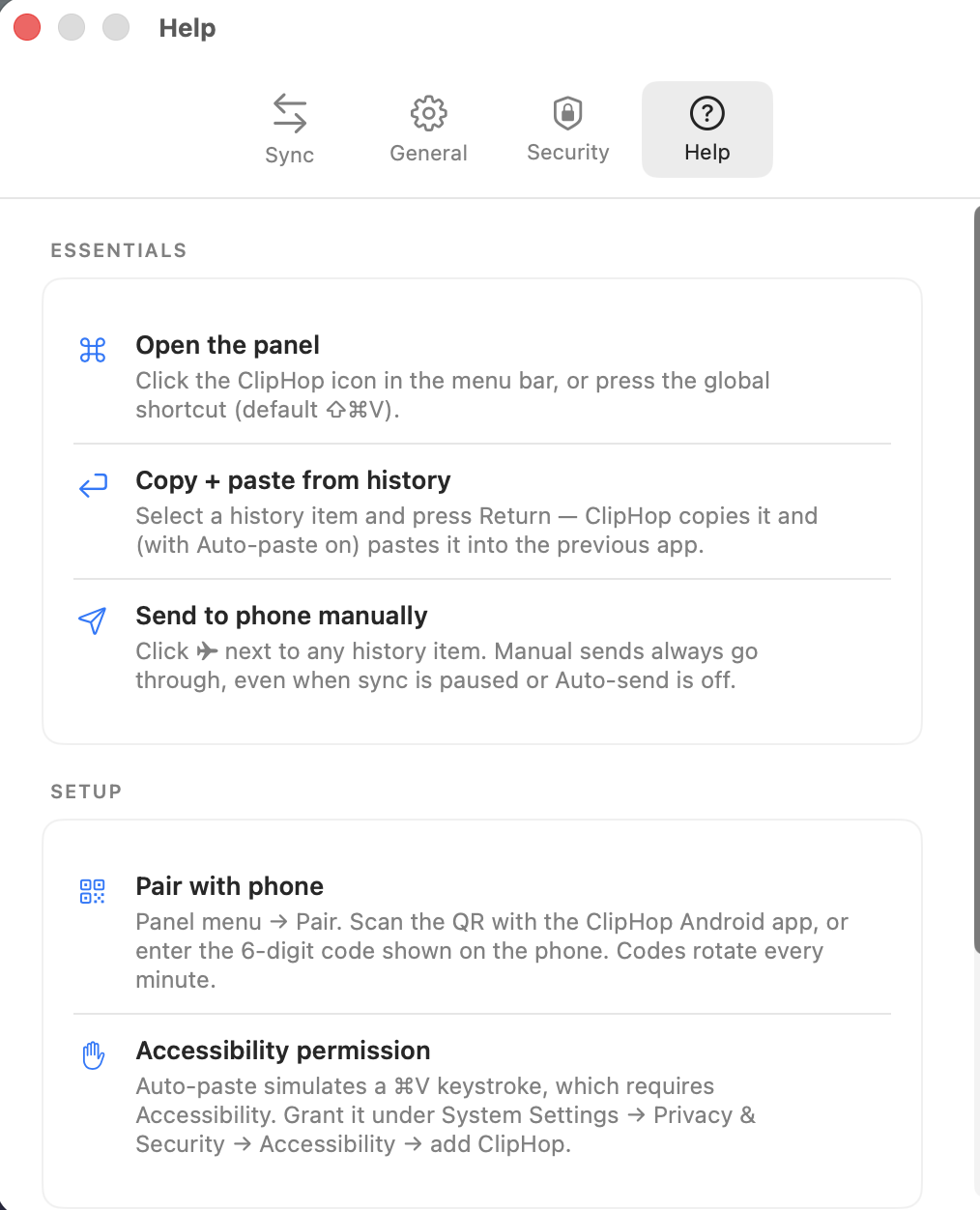
ClipHop for Mac, Help tab: 'Open the panel' with the default ⇧⌘V shortcut, 'Copy + paste from history' via Return, 'Send to phone manually' via the ✈ icon, plus setup tips for pairing and the Accessibility permission needed for auto-paste.
Every follow-up above has a matching entry in the app’s built-in Help tab — including the default global shortcut, the Accessibility toggle, and what each icon in the panel does.

Having trouble? Email [email protected] and we’ll help.