Install guide
Install on Android
ClipHop for Android is in private beta. Join the Early Adopters group to get in first — you’ll see new builds before anyone else and your feedback steers what we ship.
Step 0
Early accessBecome a ClipHop Early Adopter
Android testing is private while we field-shake the build. Early Adopters get access first, hear about every new release before anyone else, and their feedback shapes what ships next. Two clicks gets you in.
- 01
Join the ClipHop Early Adopters group. You’re subscribing to a small private list that doubles as the access pass — you’ll also be the first to hear about new builds and to shape what we ship next.
- 02
Bookmark this page, then give Play a little time to recognise you. Most testers are in within an hour; Google quotes “up to a day” as the outside case — feel free to set up the Mac side in the meantime and come back to step 3.
- 03
On the Android phone you’ll actually test on, open the opt-in link, tap “Become a tester”, and install from the Play Store page that follows. Same Google account as the one you joined the group with — anything else just bounces.
- 04
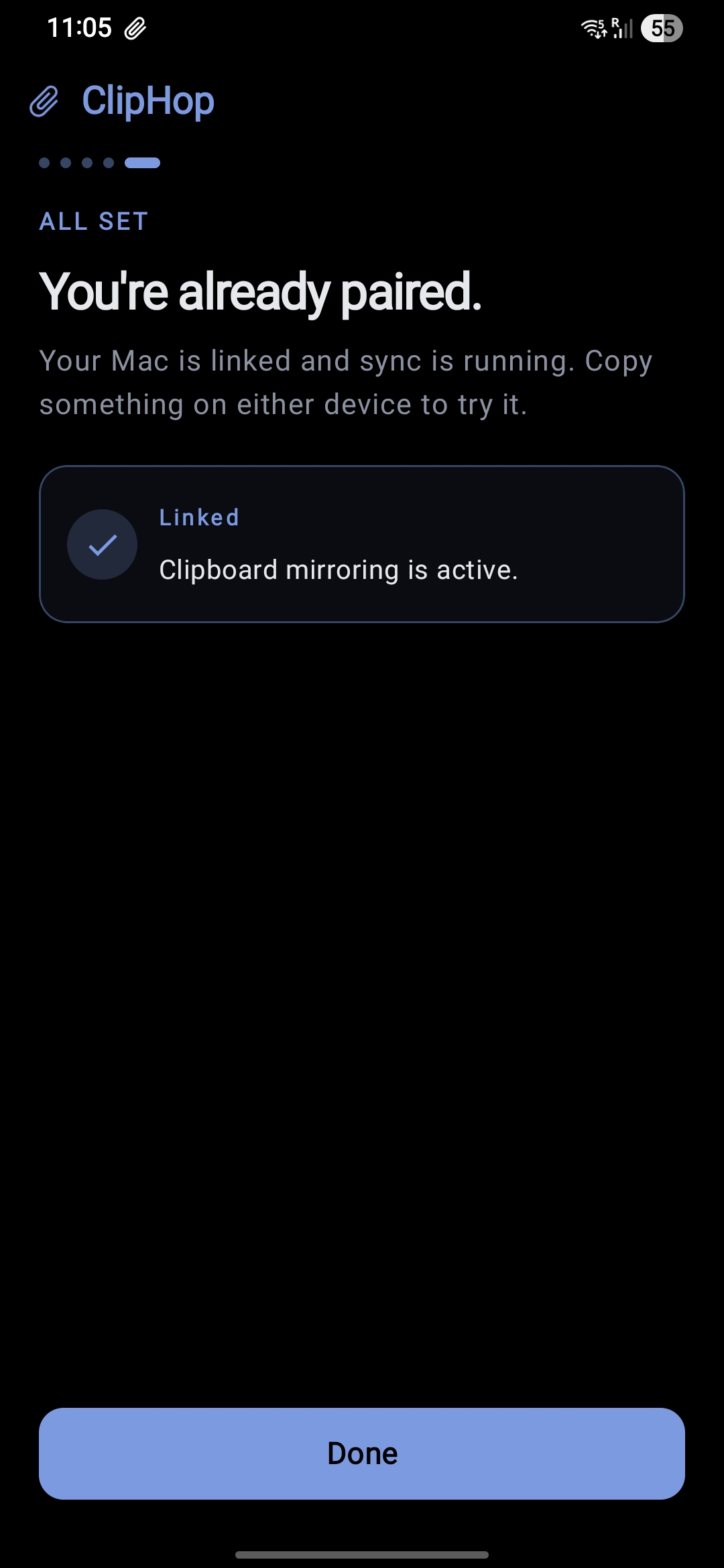
Launch ClipHop, run through the permissions wizard, and you’re paired and syncing. The same steps live below in case you skip one and need to come back to it.
Heads up · Open the opt-in link on the Android phone itself, signed into the same Google account you used to join the group. Mac browsers and incognito windows just bounce you to the Play Store homepage.
- 01
Open ClipHop after install
After the opt-in flow above installs ClipHop from the Play Store, open the app. The first launch starts the permissions walkthrough — the rest of the steps below are exactly what that wizard asks you to do, in case you skip one and need to re-grant later. Android 10 (API 29) or newer is required. Real devices only — emulators don’t expose the host’s Bluetooth radio.
- 02
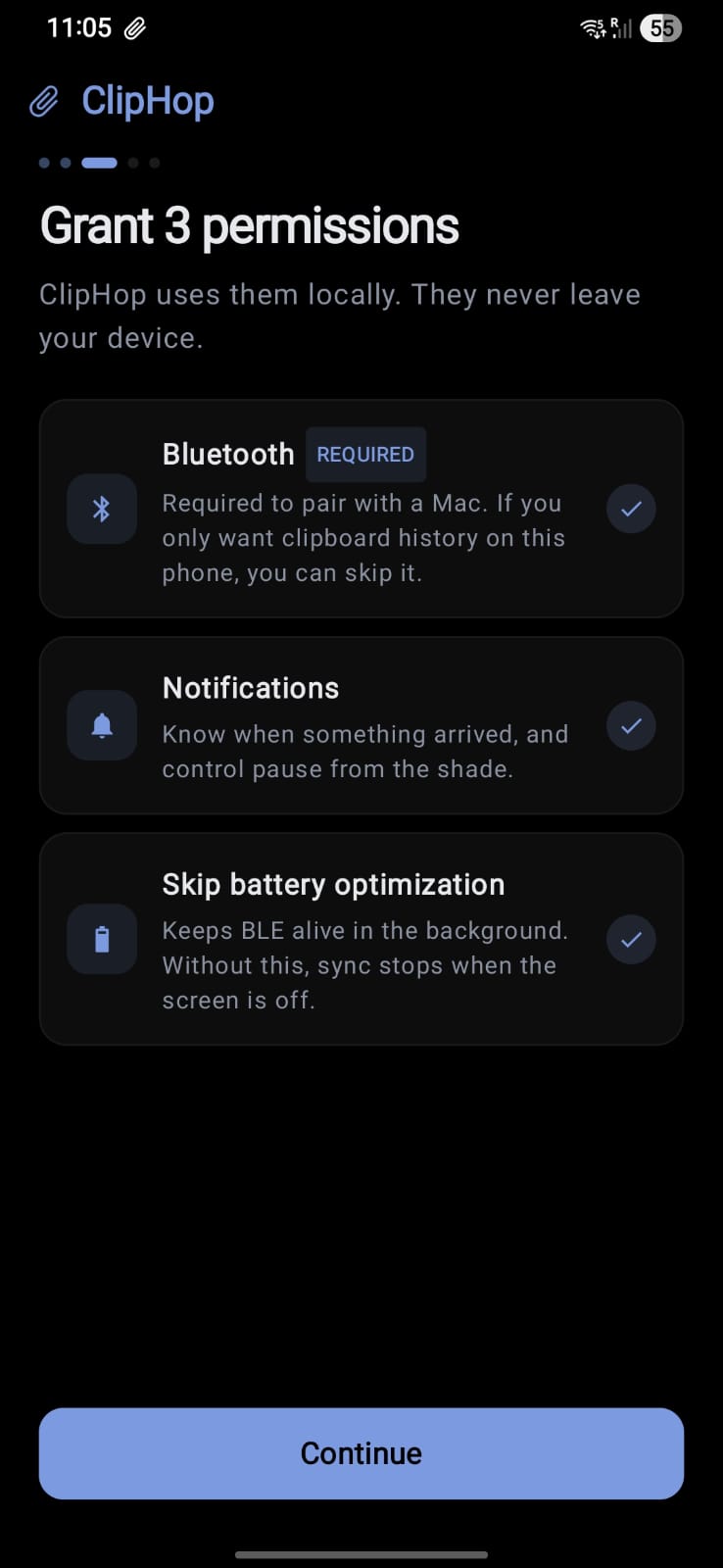
Grant Bluetooth permission
The first time you tap Pair, Android asks for Nearby Devices (BLE scan + connect). Tap Allow. ClipHop never uses classic Bluetooth pairing, so your phone won’t appear in other devices’ BT lists.
- 03
Allow notifications (Android 13+)
ClipHop shows a small persistent notification while sync is active. That’s the foreground service notice — it’s how Android lets the app keep the Bluetooth link open when other apps are in front or the screen is off.
- 04
Remove battery restrictions
Open Settings → Apps → ClipHop → Battery, and choose Unrestricted (or “Don’t optimize”, depending on your OEM). Without this, Samsung, Xiaomi, and OnePlus skins will aggressively kill the background service after ~15 minutes and your clipboard stops syncing.
Note · Pixel / stock Android needs this less often. Samsung One UI almost always does.
- 05
Pair with your Mac
Tap Pair in the ClipHop app, then scan your Mac’s QR code — or enter the 6-digit code shown on the Mac. The full walkthrough is on the pairing page.
Stuck? Email [email protected] with your device model and Android version and we’ll help.